Appearance
Create a project
A project holds everything an operator sees: its screens, and the bindings that connect them to tags. Tags themselves belong to Nexus, not to a project, so several projects can share them.
Connect Studio to Nexus
Start Studio. It opens on Studio Home, which has a card for each Nexus instance it knows about. A new Studio already has one card, Local Dev, pointing at localhost:8443: a Nexus on the same machine.
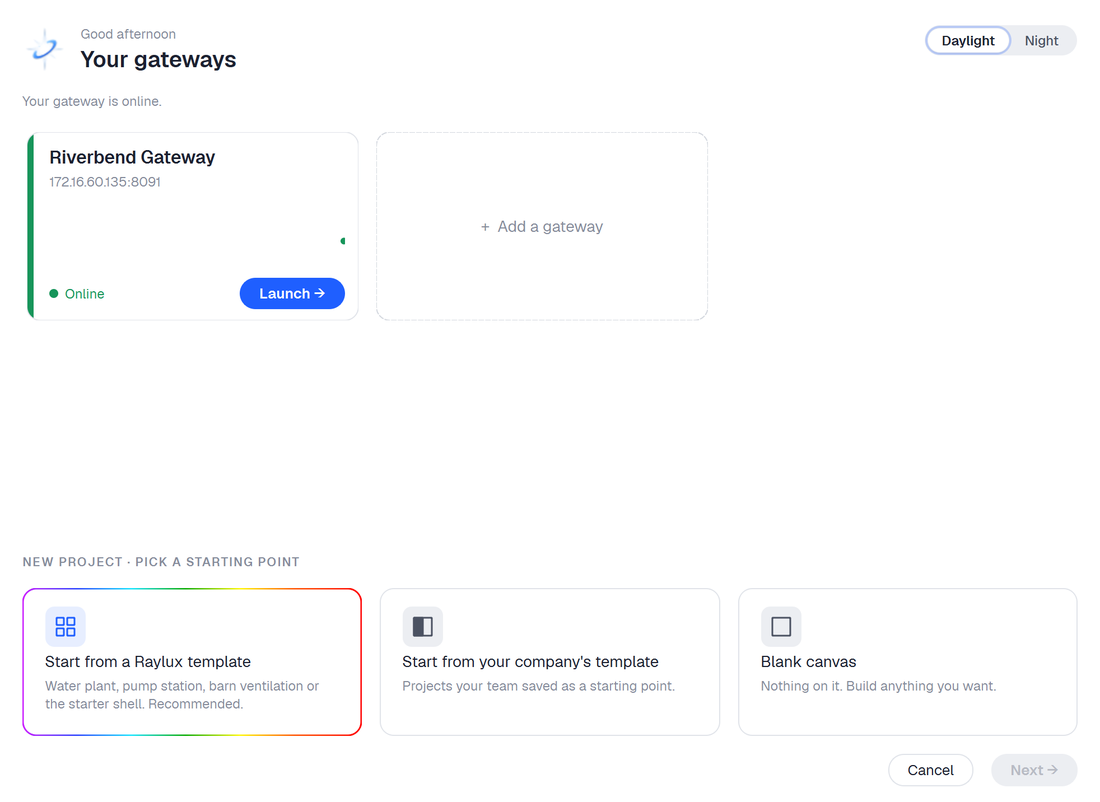 Studio Home with one gateway card. Yours is named Local Dev; this one is named Riverbend Gateway.
If Nexus runs on this machine, click Launch on Local Dev.
If Nexus runs somewhere else, click Add a gateway, enter its Host, leave Port at 8443, click Verify connection →, give it a Name, and leave Project blank. The full procedure is in Connecting Studio to Nexus.
Then:
- Sign in with your administrator account and click Connect →.
- Studio shows the certificate Nexus presented. On a new Nexus this is a self-signed certificate. Nexus prints its fingerprint in its startup log (
HTTPS certificate SHA-256 fingerprint: …); check that it matches, then click Trust & Connect. Studio remembers it.
Create the project
A Nexus with no projects yet shows three ways to start straight after you sign in: a Raylux template, your company's template, or a blank canvas.
- Choose Blank canvas. Studio shows the New project form.
- Enter a Name of
Tutorial. - Leave Description empty and Start from at Blank canvas.
- Click Create project.
 New project, after choosing Blank canvas.
Studio opens on the new project. It has no views yet.
On a Nexus that already has projects, Studio Home lists them instead; use + New project under the list, or, once Studio is open, File > New project… (Ctrl+Shift+N).
Project names
Names must be unique on a Nexus — Studio refuses a name that is already taken. A short name without spaces, like Tutorial, also keeps the address operators open in their browser tidy.
The Studio window
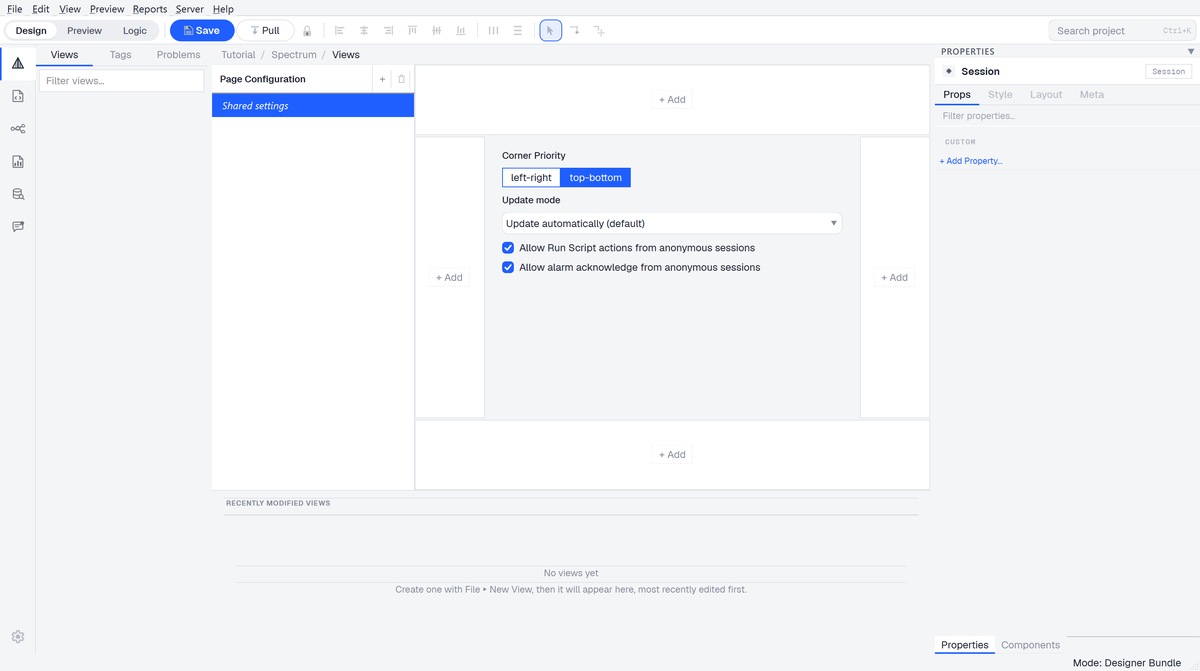 Studio on a new, empty project.
These parts matter for this tutorial:
| Where | What it is for |
|---|---|
| Views tab, top left | The project's views. |
| Tags tab, beside it | Nexus's tags: create and edit them here. |
| Properties tab, bottom right | The selected component's settings and bindings. |
| Components tab, beside it | The palette of components you add to a view. |